
Visualizing Cratermaker Data#
Cratermaker’s Simulation class has a number built-in methods for visualizing output data. These include Simulation.show3d(), which will visualize both the surface mesh and crater counts with PyVista, Simulation.plot() for making 2D plots with Matplotlib and GeoPandas. In addition, the internal UxDataset representation of Surface data can be visualized with the array of tools available using the UxArray package. You can also export data in a number of different formats using the Simulation.export() method.
Visualizing with PyVista#
The Simulation.show3d() method is a fast way to get a fully three dimensional visualization of a surface. In the example below, we emplace a 500km crater onto a lunar surface at 60° N latitude, 60° E
from cratermaker import Simulation
sim = Simulation(gridlevel=7)
sim.emplace(diameter=500e3, location=(25,30))
sim.show3d()
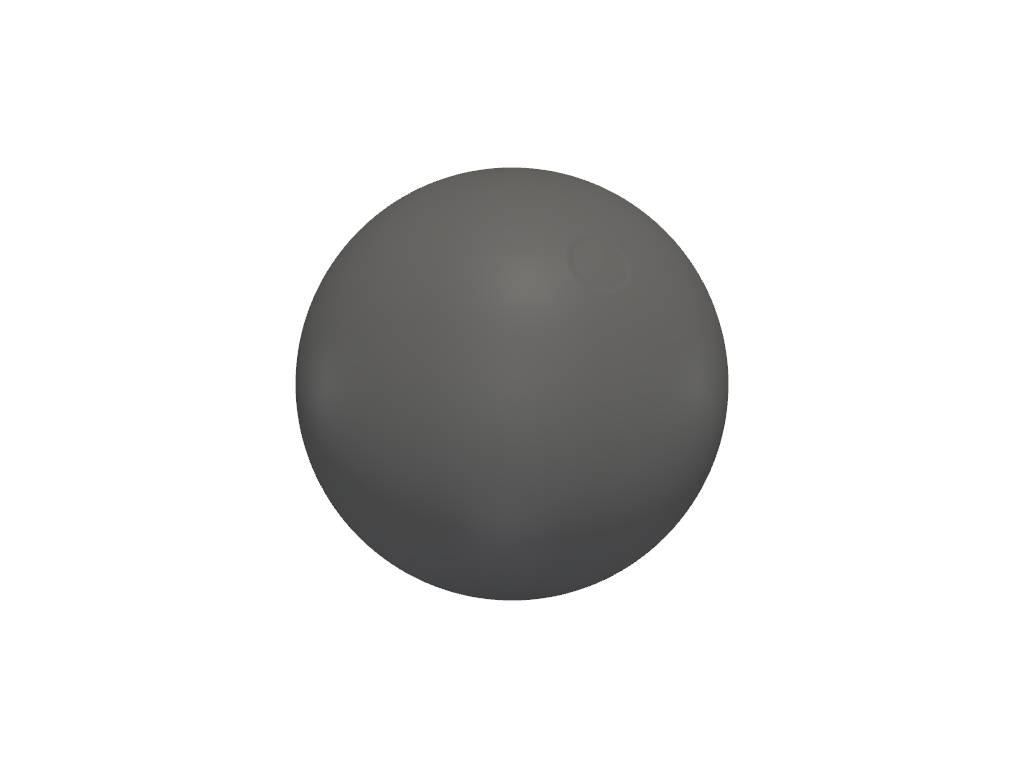
Using show3d to visualize the surface mesh.
There are number of different options for data to display by passing the “variable_name” argument to paint the surface mesh with colors using the particular data variable you want. To see what is currently available on your surface, you can inspect the face_variables() property for their names. For our simulation, we could plot the ejecta thickness, like:
sim.show3d(variable_name="ejecta_thickness")
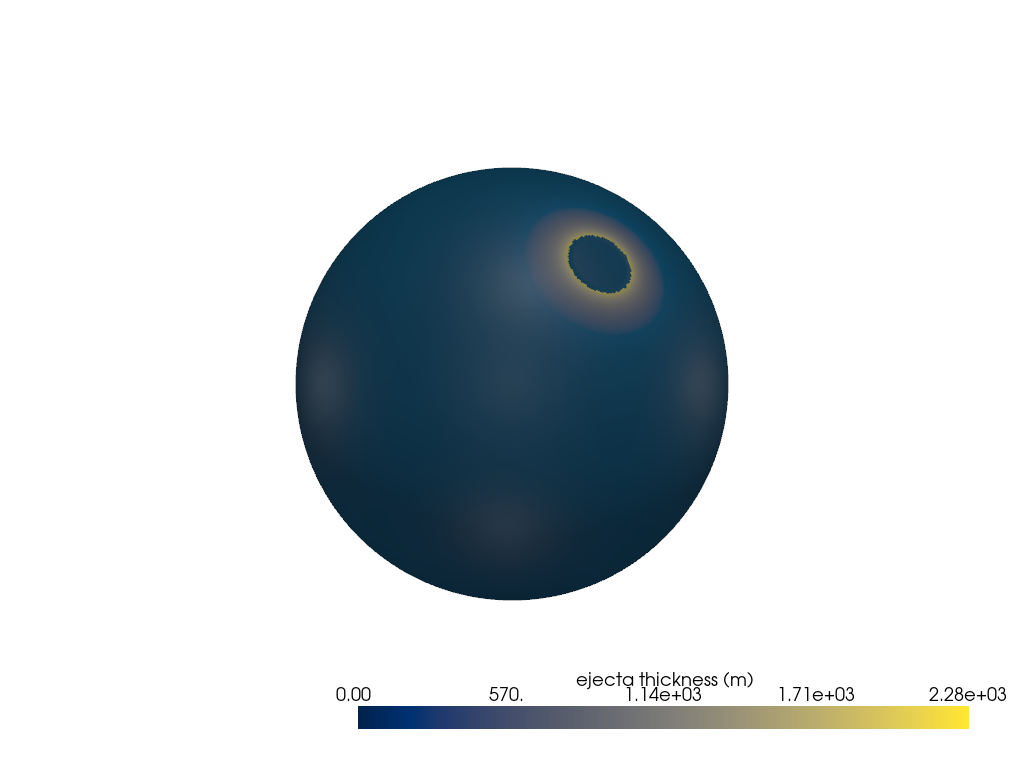
Using show3d to visualize the surface mesh.
When using as a standalone tool (not embedded in a website like here), you can bring up a menu of options using the “h” key. For instantance, you can cycle through all of the surface datasets using the “j” key. Sometimes you may want to have more control over the visualization. In this case, you can use the Simulation.pyvista_plotter() method to get direct access to the PyVista plotter object, which you can then customize with all of the tools available in the PyVista documentation. For instance, you could add a fancy space background and some custom lighting to make your visualizations look extra spacy.
sim = Simulation(
    simdir="quasimc",
    quasimc_file="qmc_input.csv",
    gridlevel=9,
    ask_overwrite=False,
    reset=True,
    save_actions=None,
    rng_seed=252346663,
)
sim.run(age=4310, time_interval=10)
This high resolution simulation could take many hours to run, and it would be inconvenient to re-run it just to export data. In a separate script, we can open up the old data and export it all to VTK format:
from cratermaker import Simulation

sim = Simulation(
    simdir="quasimc",
    reset=False
)
sim.export(interval=None, driver="VTK")
Notice that we don’t have to supply any information about the grid, as these are stored in the old simulation’s configuration data file “cratermaker.yaml”. Upon running this, the code will output VTK files for each interval and place them in the “export” folder. Alternatively, we can also just use the built-in method to_vtk_mesh() that can convert the surface of any saved interval into a VTK mesh that can be imported directly into PyVista.
Here I’ve included a script for generating a movie of the surface evolution of the Moon, with lots of fancy graphical elements to help communicate the what is happening throughout the simulation. The CSV file used in this example is qmc_input.csv.
from pathlib import Path

import numpy as np
import pyvista as pv
from cratermaker import Simulation
from tqdm import tqdm

simname = "quasimc"

# Set up some spacey looking lighting and background
pv.set_plot_theme("dark")
pl = pv.Plotter(off_screen=True, lighting="none", window_size=(1280, 960))
pl.enable_hidden_line_removal()
light = pv.Light()
light.set_direction_angle(30, -40)
cubemap = pv.examples.download_cubemap_space_16k()
_ = pl.add_actor(cubemap.to_skybox())
pl.set_environment_texture(cubemap, is_srgb=True)
pl.add_light(light)
pl.open_movie(simname + "-anim.mp4")


# This will rotate the Moon 1.5 times so that it starts facing the far side with South Pole-Aitken, and ends facing the near side
def rotation_angle(frac):
    return 180 + (360 + 180) * np.sqrt(frac)


# Read in the Simulation data and iterate over all saved intervals
sim = Simulation(simdir=simname, reset=False)
for interval in tqdm(
    range(sim.interval + 1),
    desc="Creating animation...",
    unit="interval",
    total=sim.interval,
):
    # Time is poorly constrained in this early epoch, so the 4310 My bp simulation start time could in reality be representative of anything from the high 4400s to the mid 4200s.
    # The amount of cratering wouldn't change, just the relationship between the number of craters and the time. once you get close to Imbrium at 3922, the simulation time is probably pretty close to accurate.
    if interval < 27:
        label = "Time: Pre-Nectarian"
    else:
        label = "default"

    pl = sim.pyvista_plotter(
        plotter=pl,
        interval=interval,
        crater_style="impacts",  # This will create a neat effect where the new craters show an "impact flash" as they are added to the plot.
        crater_type="emplaced",
        crater_color="white",
        label=label,
        time_label=True,  # Pare down the default label set to just time
        interval_label=False,
        age_label=False,
        N_label=False,
        enable_interactive=False,  # Turns off interactive key events, which will otherwise cause the impact flashes to be turned off by default
    )

    # Rotate all of the PyVista actors together using our rotation function
    for n in ["Moon", "emplaced_impacts"]:
        if n in pl.actors:
            pl.actors[n].rotate_z(rotation_angle(frac=interval / sim.interval))

    if interval == 0:
        pl.reset_camera()
        pl.view_yz()
    pl.show(auto_close=False)
    pl.write_frame()

# Add a few extra frames at the end to let the animation linger on the final state
pl.remove_actor("emplaced_impacts")
for _ in range(30):
    pl.write_frame()

pl.close()
Two-Dimensional Plots#
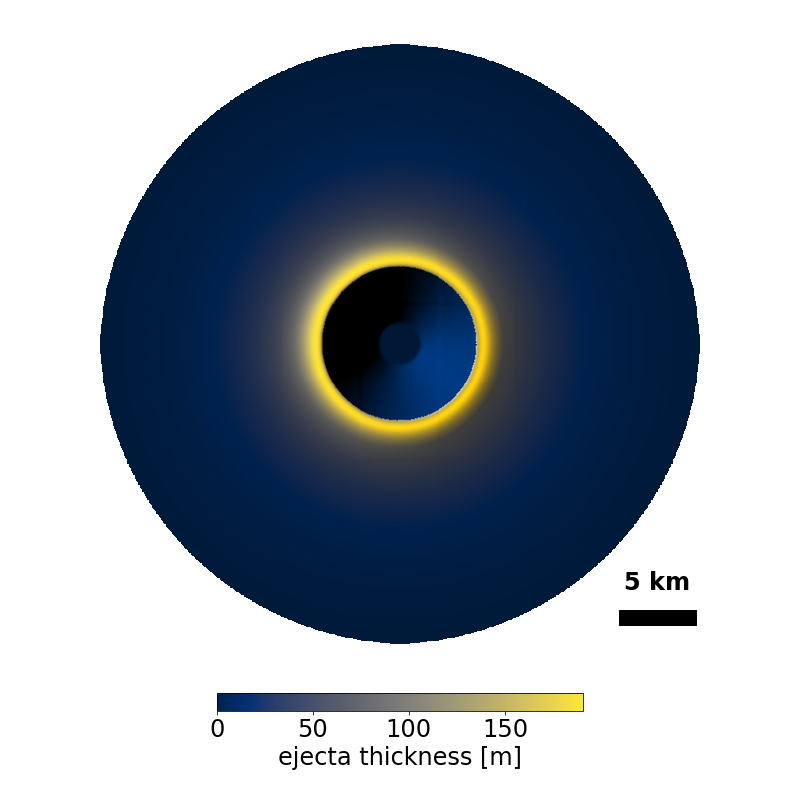
Two dimensional plots of the surface can be made with the Simulation.plot() method, which uses Matplotlib and GeoPandas. This is useful for making quick plots of the surface, and also for plotting crater counts. For instance, to make a simple plot of the surface mesh colored by ejecta thickness for a local crater:
from cratermaker import Simulation
sim = Simulation(
    surface="hireslocal",
    local_location=(0, 0),
    pix=50.0,
    local_radius=20.0e3,
)
sim.emplace(diameter=10e3, location=(0, 0))
sim.plot(plot_style="hillshade", variable_name="ejecta_thickness", show=True, save=False)
Exporting data#
If you have old simulation data that you want to visualize it, you can make use of the Simulation.export() method. This method allows for exporting component data into multiple different formats, including “VTK’, “GeoTIFF”, “GPKG”, “Esri Shapefile”, and more, depending on the component.
For instance, to export the surface mesh to a VTK file that can be opened up with other visualization tools, like ParaView.
sim.export(driver="VTK")
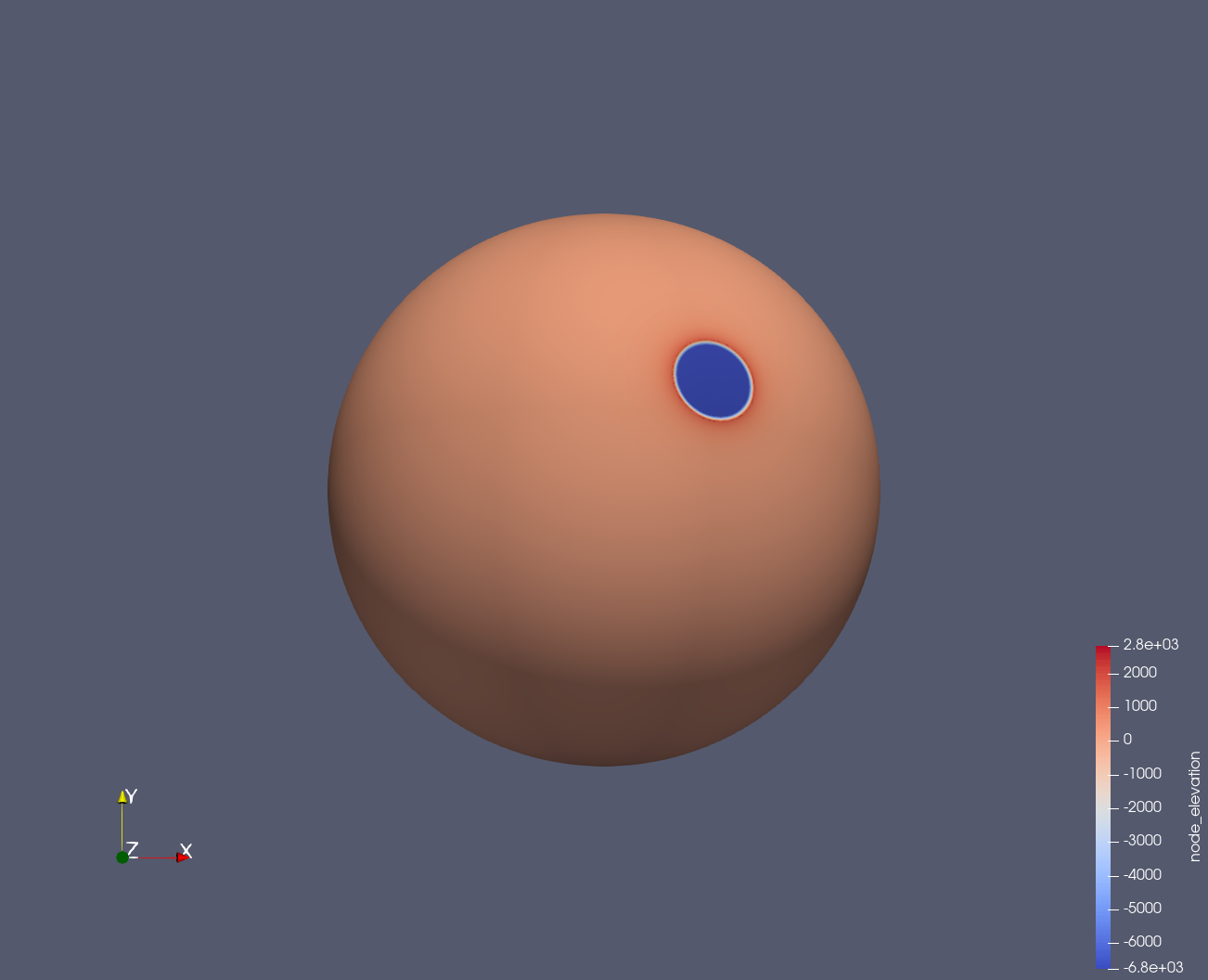
For a more sophisticated set of post-processsing analysis tools, you can also export the surface mesh and data in other formats using Simulation.export() using the “driver” option to control how to export the data. For instance, with the “vtk” driver, you can visualize Cratermaker data using ParaView. In this example, we will emplace a 500 km crater on the Moon at a location of 60° N, 45°E, and then visualize the surface mesh using Pyvista.
The simulation will generate several files in a folder called surface, including grid.nc and surf000000.nc. When exported to vtk format, a file called surf000000.vtp will also be placed in the export folder. In this example, the simulation only contains one interval, so only one file is created (see Simulation for how to run multi-interval simulations).
We can then open up the mesh in PyVista for visualization.
ParaView can be used to visualize the surface mesh, and also to create animations of the surface evolution. For more information on how to use ParaView, see the ParaView documentation.
Exporting multi-interval data#
By default, Simulation.export() will only export the most recent interval in a multi-interval run. However, you can specify which intervals to export using the “intervals” parameter, where passing “None” will export all previously saved intervals. This is useful for re-processing long-running simulations without having to re-run them.
More Examples#
More detailed examples of visualization are provided in the Simulation gallery.